
Instead of manually retyping rental invoices each month, set up car rental invoicing for corporate accounts around a shared register, booking references and approval checks. This guide explains how to prepare records for your expense system without assuming your rental provider offers a direct integration.
- Car rental invoicing for corporate accounts needs booking references, supporting documents and approval checks before expense-system entry.
- VPI Cars suits businesses needing corporate car rental or with-driver transport in Metro Manila and Luzon.
- Start with a controlled invoice register; use file imports only after confirming your expense system’s requirements.
- Confirm billing arrangements before booking rather than assuming monthly invoicing or payment terms.
Why this matters
An invoice tells finance what was billed. It does not, by itself, explain which department requested the vehicle, who approved the trip or whether an additional charge matches an agreed change.
VPI Cars is best for businesses seeking corporate car rental and with-driver transport in Metro Manila and Luzon. For a quotation, start with VPI Cars and describe your passenger numbers, itinerary, rental duration and driver requirements. Confirm billing arrangements separately; corporate rental does not automatically establish monthly billing, credit terms or an expense-system connection.
For your 2026 process, keep the booking decision and the accounting decision connected but distinct. The rental provider confirms the transport arrangement; your finance team decides how to record, approve and pay the resulting expense.
Before you start
- Gather access and documents: Have the accepted quotation, booking confirmation, rental agreement, invoice and relevant trip records. Identify who can enter expenses, approve them and authorise payment.
- Confirm billing details: Ask which company details and supporting information the provider needs. Confirm invoice delivery, billing periods and payment terms directly rather than building your process around assumptions.
- Check the hidden mismatch: A rental can span accounting periods or serve several departments. Decide how finance will handle those cases before importing anything; the invoice date alone does not describe when or why the transport was used.
This is a document-based workflow, not a claimed software integration. The bold labels below are suggested fields for a register you create, not buttons or settings in a particular application.
Booking reference and invoice register
Your register connects each rental expense to its business purpose. Keep the original documents alongside the record rather than replacing them with typed summaries.
- Create a shared register. Add Supplier, Invoice reference, Invoice date, Service period, Booking reference, Department, Business purpose, Amount, Approver, Status and Document location. Restrict editing to the people responsible for maintaining the record.
- Set a booking reference before requesting transport. Use your existing purchase-order or travel-request reference where applicable. Ask whether the provider can include it in the relevant documents; otherwise, maintain the connection internally.
- Record the actual service period. Enter the dates covered by the rental, separately from the invoice date. For a 2026 register, use a consistent date format and label the reporting period clearly.
- Attach the evidence. Store the original invoice, accepted quotation and booking confirmation in your approved document location. Add written approval for itinerary changes when those changes affect the expense.
- Choose a consistent recording rule. Use 1 row per invoice in the invoice register. If you need departmental allocations, keep those in a separate allocation sheet so they do not look like additional supplier invoices.
Expected result: Each invoice has a traceable booking, business purpose and document set. Finance can understand the expense without searching through unrelated messages.
Keep passenger information out of the finance register unless it is needed for the accounting or approval task. A booking reference usually provides a cleaner connection than copying detailed travel information into every record.
Expense coding and approval route
Assign responsibility before you send the invoice for approval. The person confirming that a trip happened does not necessarily have authority to approve its accounting treatment or payment.
- Assign the cost owner. Populate Department and Approver from the approved travel request. For shared transport, ask finance how to document the allocation rather than guessing a split.
- Separate the checks. Use 2 approval checks: service confirmation by the booking owner and financial approval by the authorised approver. Follow your company’s existing authority rules if they require additional review.
- Match the documents. Compare the invoice with the accepted quotation, confirmed service period and approved changes. Check separately listed items against the documents that explain them.
- Record exceptions clearly. Use a Status such as Needs clarification when a reference, service date or charge does not match. Assign a person to resolve the question instead of leaving an unexplained blank.
- Release only approved records. Change Status to Approved for entry after the required checks. Keep payment authorisation separate if your finance process treats it as a later step.
Expected result: Every record has a named decision-maker and a visible approval outcome. Unresolved items remain identifiable rather than entering the normal payment queue unnoticed.
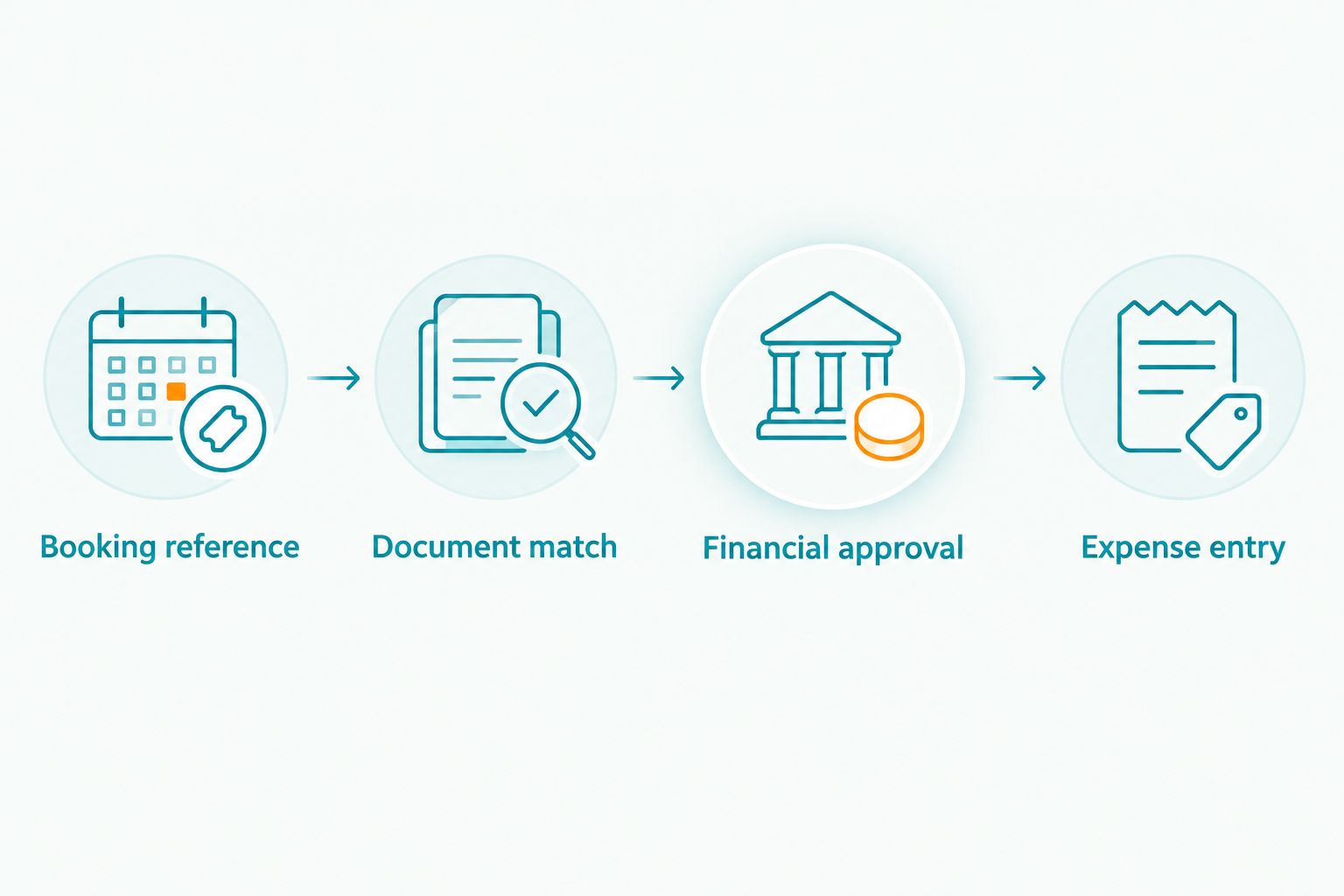
Use this sequence for both Metro Manila trips and out-of-town Luzon assignments. The destination changes the itinerary information you collect, not the need to connect a booking to an authorised business expense.
Expense-system entry and reconciliation
Choose the transfer method your finance team can control. A repeatable manual process is preferable to an unverified import that creates incomplete or duplicate records.
| Method | Best for | Benefit | Limitation |
|---|---|---|---|
| Manual entry | Teams reviewing each invoice individually | Allows a direct document check during entry | Requires repeated typing and careful checking |
| File import | Teams whose expense system supports a documented import format | Transfers prepared records without retyping each field | Requires field mapping, validation and duplicate controls |
Neither method establishes a connection to the rental provider. File import means moving your prepared records into your own system using a format that system accepts.
- Check the destination requirements. Confirm mandatory fields, accepted date formats, currency handling, attachment support and approval behaviour in your expense system’s documentation. Do not assume a spreadsheet header will map automatically.
- Map fields explicitly. Write down where Supplier, Invoice reference, Invoice date, Amount and Department belong. Let finance decide the account code and tax treatment; do not derive either from the article or the supplier name.
- Check for duplicates before entry. Compare supplier, invoice reference and amount with existing records. Investigate matches rather than deleting them automatically: an amended document needs different handling from an accidental duplicate.
- Validate a sample. Test 1 invoice before processing the remaining records. Use a test environment if your system provides one; otherwise, follow finance’s approved validation procedure without creating a payable test expense.
- Reconcile the completed batch. Compare the number of records and combined amount entered with the approved register. Record the destination reference in Expense record reference so another reviewer can find the entry.
Expected result: The destination system contains the approved records, and the register identifies where each one was entered. Any rejected record remains open for correction.
For your 2026 setup, document the actual field mapping beside the register. If the expense system changes its import format, update the mapping before the next batch rather than relying on last month’s successful upload.
Recurring monthly rental review
Recurring corporate rentals need a review cycle, not a copied approval. The vehicle requirement, assigned department or service period can change even when the business relationship continues.
- Create a review calendar. Align your internal review with finance’s reporting timetable and the billing arrangements confirmed with the provider. Do not treat the calendar as proof that monthly invoicing has been agreed.
- Refresh the business requirement. Check the rental duration, passenger needs, itinerary and whether the arrangement is self-drive or with-driver. Include provincial destinations when relevant to the assignment.
- Check the new documents. Verify each invoice reference and service period. Do not copy a previous amount, approval or tax treatment without checking the current documents.
- Close the reporting loop. Record approved, unresolved and entered items separately. Ask finance how to handle a reporting cutoff when supporting documents or clarifications remain outstanding.
Expected result: Recurring transport stays linked to a current business need and a reviewed invoice rather than becoming an unchecked repeating expense.
Keep the underlying travel rules consistent with your HR travel policy and long-term rental account. Policy defines who can request transport; the invoice workflow records how the resulting expense was checked.
When a booking changes after approval
Use an exception route when an approved itinerary changes. Examples include an additional stop, a different rental duration or a revised passenger requirement; confirm the transport arrangement before assuming the original quotation still applies.
- Record the change: Keep the revised itinerary and the person requesting it with the booking documents.
- Confirm the commercial effect: Ask the provider whether the change affects the quotation or other agreed terms. Keep the written response.
- Update approval: Follow your company’s rules for approving the revised requirement before marking the invoice ready for entry.
- Preserve the history: Retain the original and revised documents with clear labels. Let finance determine how an amended invoice or related adjustment should be recorded.
For example, a 2026 Manila meeting itinerary that expands to a Luzon site visit needs an updated transport brief and expense approval. A destination change is not merely a different description in the register.
Troubleshooting
The invoice has no booking reference
Match it using the confirmed service dates, requesting team and booking documents. Ask for clarification when the match is uncertain, then add an internal reference without altering the original invoice.
An import rejects the date or department
Compare the rejected field with the destination system’s documented requirements. Correct the transfer file, retain the source document unchanged and check which records already succeeded before retrying.
The same invoice appears twice
Check both records against the original document and payment status. Follow finance’s correction process for the duplicate; deleting a register row alone does not correct a record already entered elsewhere.
An invoice includes an unexplained charge
Compare the charge with the accepted quotation and approved changes, then request an explanation through the agreed contact channel. Mark the item Needs clarification and let finance decide how to handle it under company policy.
A rental spans reporting periods
Keep the full service period visible and refer the treatment to finance. Do not split or rewrite the supplier invoice merely to make it fit the register’s monthly view.
Customize your workflow
Start with the controls you need, then add detail where it answers a real question. Useful additions include Project, Purchase-order reference, Change approval and Payment reference; avoid collecting fields nobody maintains or uses.
For your next 2026 rental request, prepare the passenger count, pickup and destination details, travel dates, rental duration and driver requirement. Send billing questions with that brief so transport and finance requirements are discussed together.
Ask VPI Cars to quote for the actual assignment, including out-of-town Luzon travel where relevant. Confirm the individual itinerary, dates, vehicle requirements and billing arrangements before committing.
Prepare your corporate rental quotation
Share your itinerary, passenger count, rental duration and billing questions.
FAQ
How do I set up car rental invoicing for corporate accounts?
Create an invoice register that connects each invoice to a booking reference, business purpose, supporting documents and approver. Check the documents before entering approved records into your expense system.
Does VPI Cars connect directly to our expense software?
This workflow does not depend on a direct VPI Cars software connection. Ask about the documents and billing arrangements available, then confirm how your finance team will enter them into its system.
Can corporate car rental invoices be processed monthly?
Monthly processing depends on the billing arrangements agreed with the provider and your internal finance timetable. Confirm those arrangements before designing a recurring workflow.
What should finance check before approving a rental invoice?
Finance should check the invoice against the booking documents, accepted quotation, service period and approved changes. Confirm the cost owner and required approval before releasing the record for entry.
How do we handle transport shared by several departments?
Keep the supplier invoice intact and document departmental allocations separately. Finance should approve the allocation method and check that the allocated amounts reconcile to the invoice.
Can this workflow cover provincial trips outside Metro Manila?
Yes, the same document and approval workflow applies to Luzon provincial trips. Record the full itinerary and confirm the specific transport arrangement rather than treating a destination mention as booking confirmation.
Should we import invoices automatically or enter them manually?
Use manual entry when individual review suits your process; use file import only when your system supports a documented format. Both methods need document checks, duplicate controls and reconciliation.
One last thing
An imported invoice is not an approved invoice. Before your first live batch, check whether importing a record sends it for review or creates a payable entry; that distinction determines where your approval control belongs.
Related guides
- Rental vehicles for small business fleets
- Car rental for construction site visits
- Van rental for conference and event organizers